Working with GitHub Repositories in VSCode Dev Containers
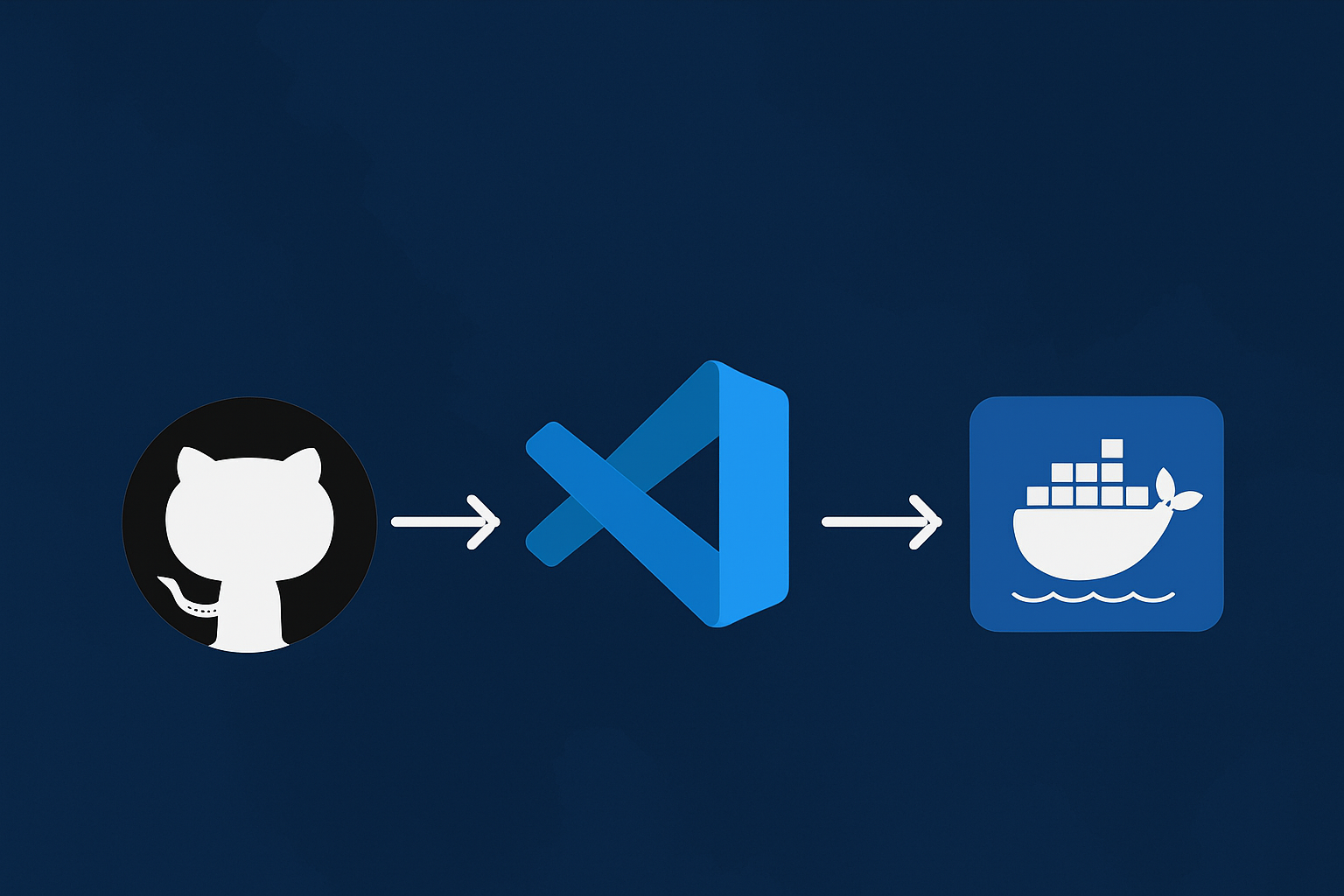
🚀 Workflow: Clone → Develop → Commit → Push using VSCode Dev Containers
This guide explains how to work with a GitHub repository (e.g., a GitHub Pages blog) using Visual Studio Code Dev Containers for a clean, isolated, reproducible development environment.
Objectives:
- How to use Dev Containers in Visual Studio Code
- How to clone a GitHub repository directly into a container
- How to develop inside an isolated environment
- How to commit and push changes
- Official references
- (Bonus) Git basics and how to run a Jekyll site locally
🧩 1. Prerequisites
Make sure you have the following installed:
✔ Docker Desktop
https://www.docker.com/products/docker-desktop/
✔ Visual Studio Code
https://code.visualstudio.com/
✔ VSCode Extension: Dev Containers
https://marketplace.visualstudio.com/items?itemName=ms-vscode-remote.remote-containers
🐳 2. Open a GitHub Repository in a Dev Container
There are multiple ways to do this, but the simplest and most recommended is:
✅ Recommended Method: “Clone Repository in Container Volume…”
- Open VSCode
- Press F1 and search for:
Dev Containers: Clone Repository in Container Volume… - Enter the URL of your GitHub repository
Example:https://github.com/z3f1r0/z3f1r0.github.io - VSCode will automatically:
- clone the repository into a Docker volume
- create the container environment
- open the project inside the container
🔗 Official docs:
https://code.visualstudio.com/docs/devcontainers/containers#_use-a-docker-container-as-a-development-environment
🧱 3. Working Inside the Dev Container
Once the environment loads:
- You are working inside the container’s filesystem, not on your host machine
- You can install any tools, SDKs, or libraries without polluting your system
- Your environment will always be clean and reproducible
You can verify that you’re inside the container by checking the bottom-left status bar:
Bottom-left corner → Dev Container: name
🔧 4. Commit & Push from Inside the Container
Make sure Git is configured (only needed the first time):
1
2
git config --global user.name "Your Name"
git config --global user.email "you@example.com"
Open the terminal inside the container and run:
1. Stage changes
1
git add .
2. Commit
1
git commit -m "Update project"
3. Push
1
git push
If it’s the first push, GitHub may request authentication:
VSCode will automatically handle OAuth login in your browser.
GUI alternative (VSCode)
- Left sidebar → Source Control
- Click + to stage
- Enter a commit message
- Click ✔ to commit
- Click ↗ to push
🔗 Useful docs:
https://code.visualstudio.com/docs/sourcecontrol/github
https://docs.github.com/en/get-started/using-git/about-git
🔁 5. Rebuild the Container (Optional)
If you modify your Dev Container configuration (.devcontainer/devcontainer.json):
Press F1 → Dev Containers: Rebuild Container
🧨 6. Recommended Dev Container Structure (Example)
Create a folder in your repo:
.devcontainer/devcontainer.json
Minimal example:
{ "name": "Blog Dev Container", "image": "mcr.microsoft.com/devcontainers/javascript-node:0-20", "features": {}, "postCreateCommand": "npm install" }
🔗 JSON reference:
https://containers.dev/implementors/json_reference/
📚 Official References
• Dev Containers (Microsoft)
https://code.visualstudio.com/docs/devcontainers/containers
• GitHub – Git
https://docs.github.com/en/get-started/using-git
• Docker
https://docs.docker.com/get-started/
🧩 Git: Useful Commands
Update your local work with remote changes (safe mode)
1
git pull origin main --rebase
User configuration
1
2
git config --global user.email "you@example.com"
git config --global user.name "Your Name"
Standard workflow
1
2
3
4
git add -A
git status
git commit -m "Update"
git push origin main
📝 Run a Jekyll Site Locally
If your blog uses Jekyll + GitHub Pages, run:
1
bundle exec jekyll serve